Free Keyword Tracking with DataStudio + Google Sheets + Search Console
Published on November 20, 2021
Hello everyone,
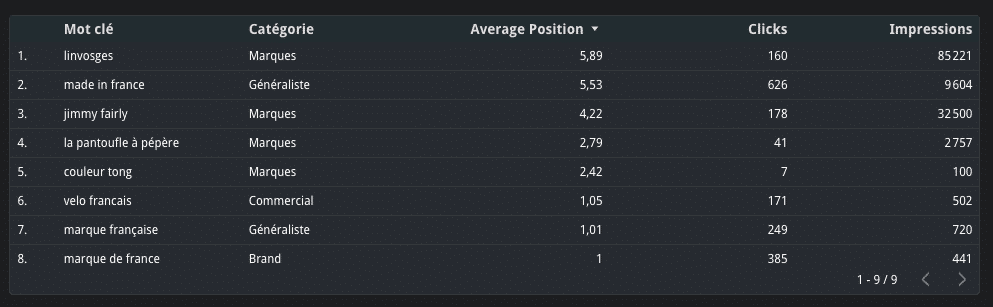
Today I'd like to share a quick tutorial that will allow you to track an unlimited number of keywords in a Data Studio report, categorize them, and it's 100% free.
We'll be using three essential Google tools for this: Google Sheets, Search Console, and Data Studio. Important: all three must be on the same Google account.
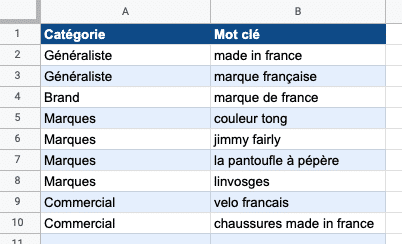
Google Sheets: Keywords & Categories
The first step is to create a new sheet (sheets.new) following this template. You can enter the category for your keywords and an unlimited list of keywords.
Data Studio & Search Console
This part involves several steps that must be followed precisely, especially if you're not familiar with Data Studio -- otherwise you can quickly end up with errors that are hard to understand.
Create a Blank Data Studio Report and Add a First Data Source
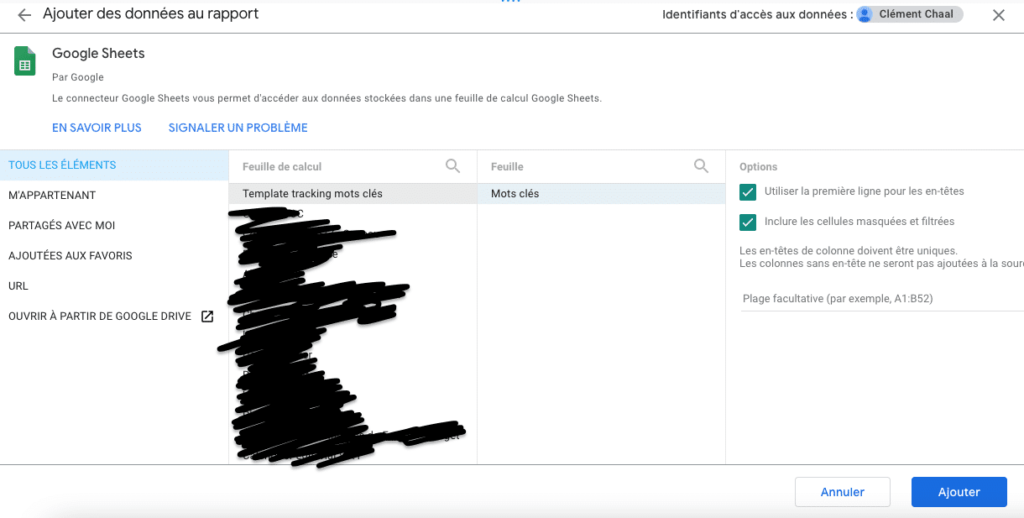
The first step is straightforward: create a new blank report at datastudio.google.com. You'll be redirected to a screen asking you to add a data source.
The goal is to select the sheet where you created your table in step 1.
Add a New Data Source (Search Console)
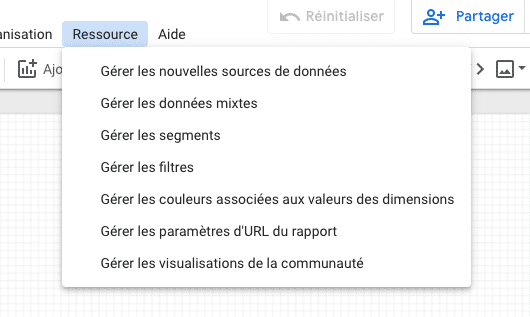
In the "Resource" menu, select "Manage added data sources".
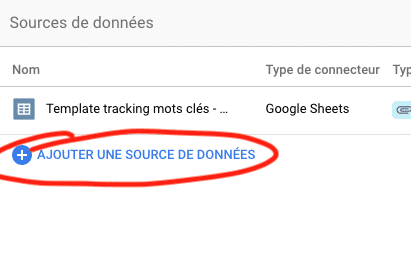
Click the "Add a data source" button.
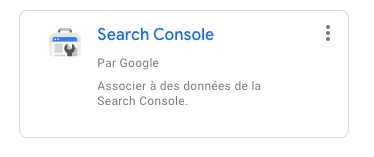
Select "Search Console".
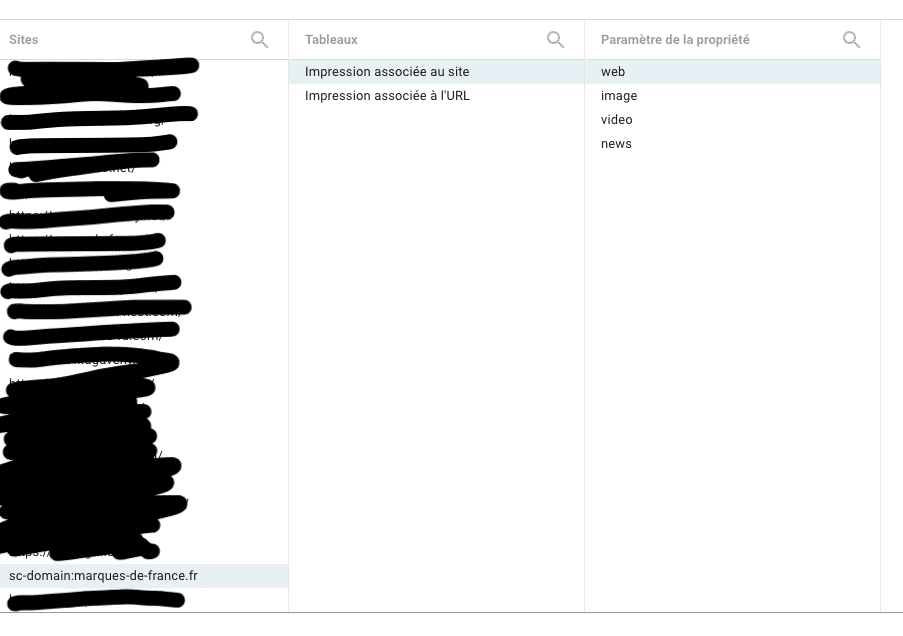
After authorizing access to your Search Console, select "Site impression" and "web".
Combine the Data
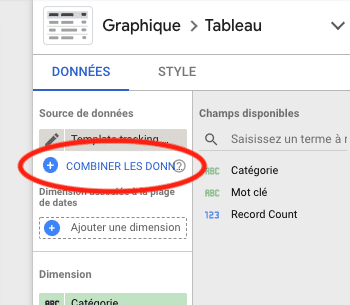
Back in your Data Studio report, in the right-hand panel, select "Blend data".
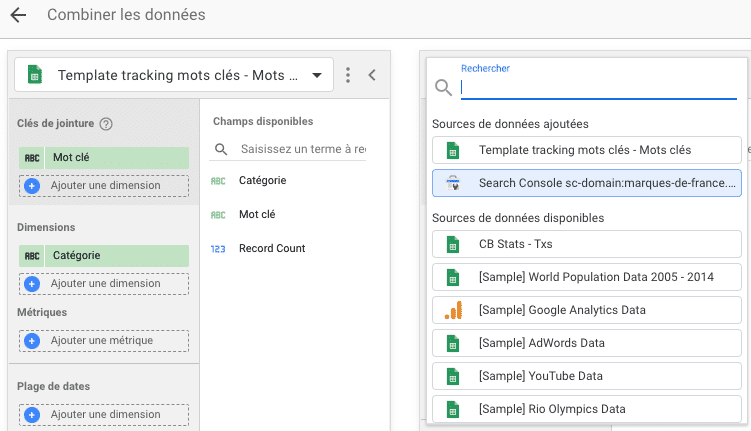
Choose your newly connected Search Console from the list.
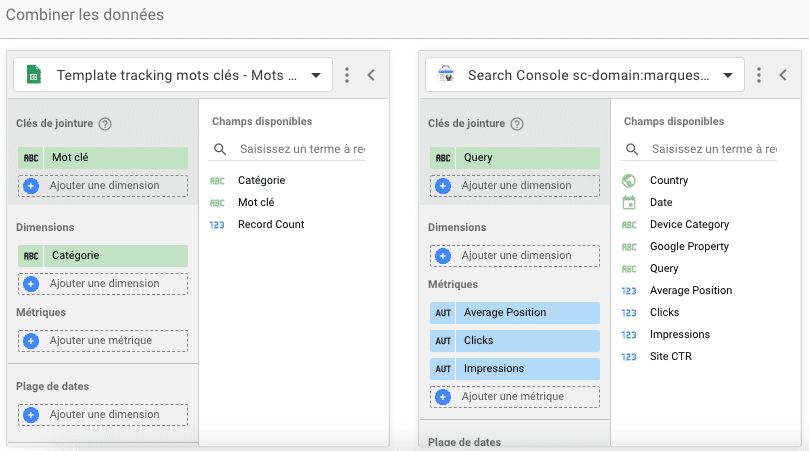
This step connects the metrics from your first data source (the Sheet) with the second one (Search Console). For the join key, select "Keyword" (the column name in your sheet) and "Query" (the corresponding value in Search Console). Add "Category" (from the Sheet side) as a dimension, along with any Search Console data you want to see alongside it.
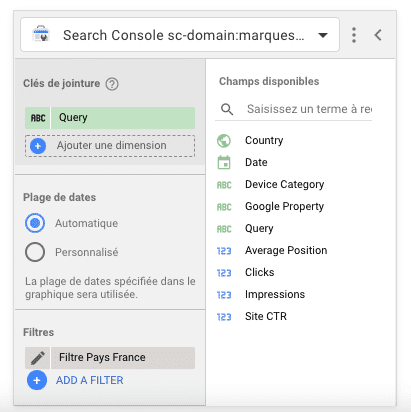
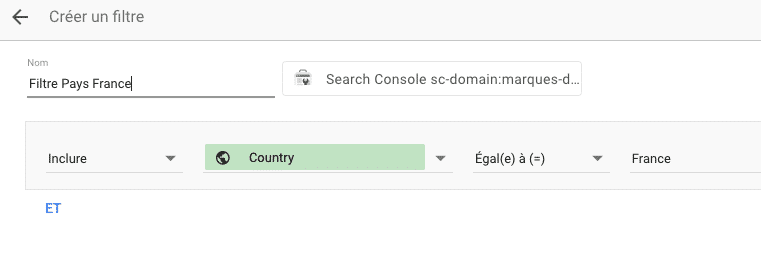
Don't hesitate to add a filter (for example, country = United States) to make sure you're seeing the data that matches what you're looking for.
Customize to Your Liking
By default, the tracking is fairly basic and covers the last 28 days. That's sufficient for many people. However, you can change the date range, add a comparison period, or tweak the table's appearance however you like.
I hope this helps some of you out -- feel free to reach out if you have any questions!